

Change your organization's settings and branding
Change your organization's name, logos and accent colours, and the links on your sign-in pages and customer portal.
Change the name
-
Select Admin center > Organization settings.
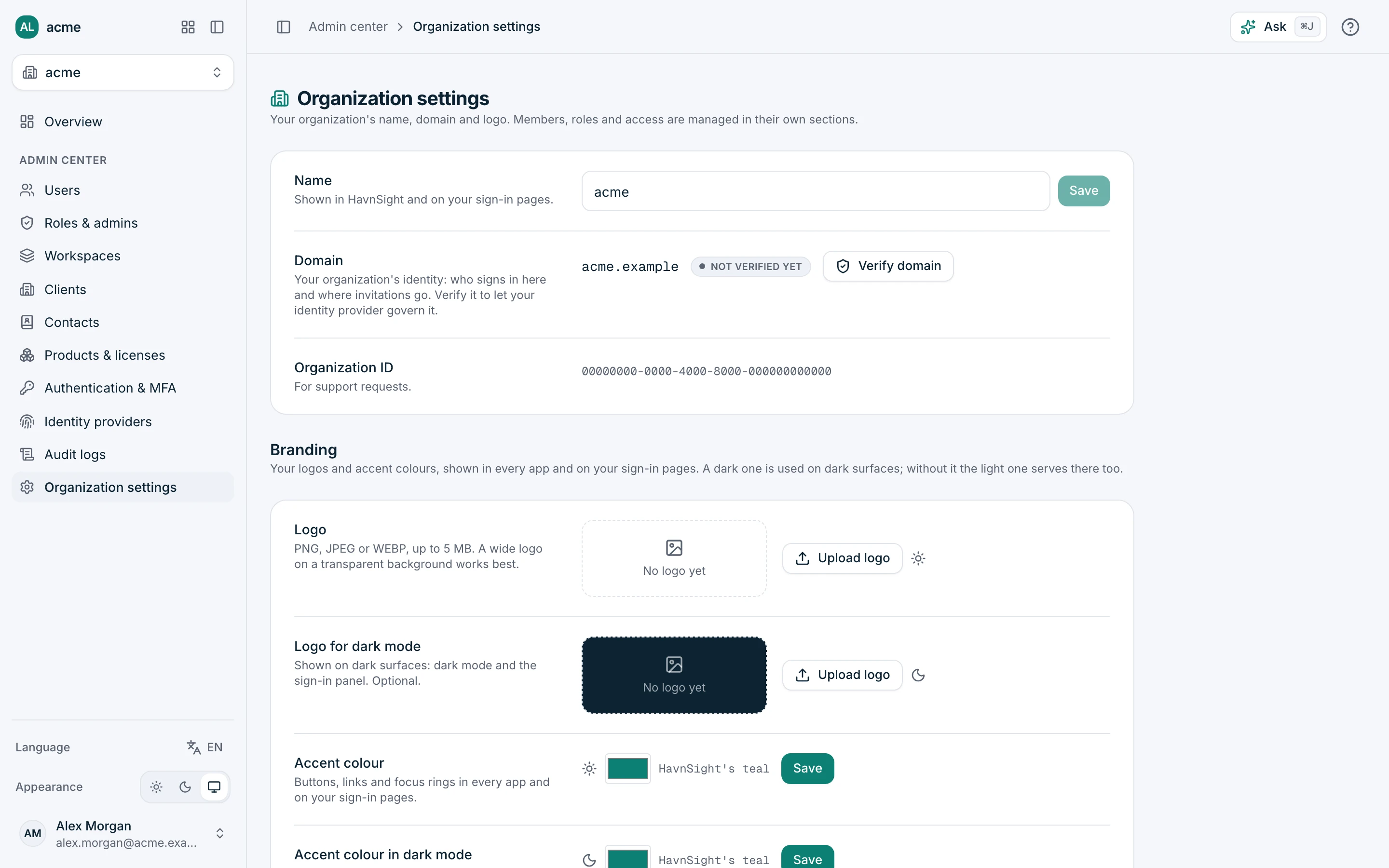
-
Enter the new Name and select Save.
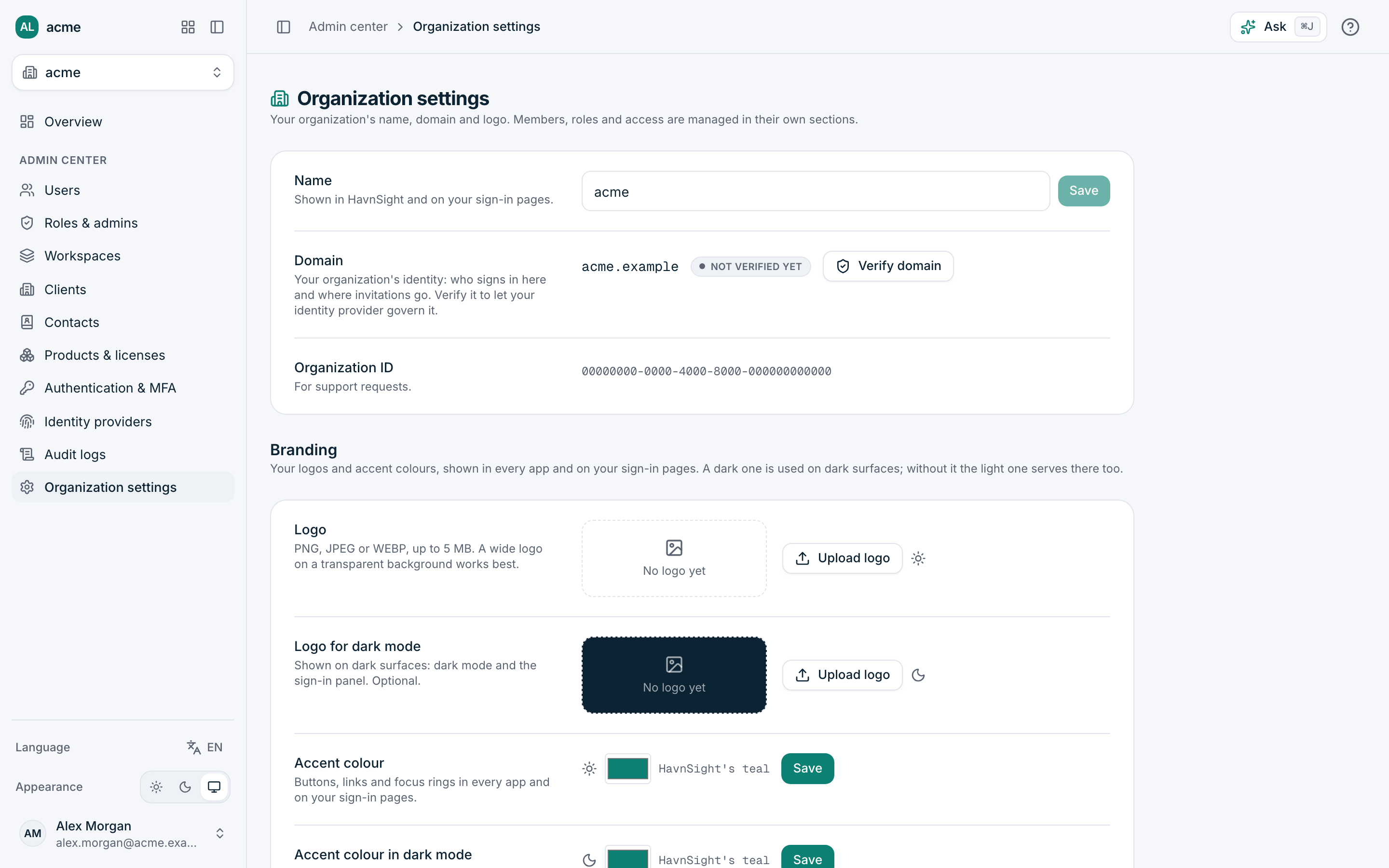
The name is shown in HavnSight and on your sign-in pages. The page also shows your Domain and the Organization ID to give in support requests.
Add your logo
- Select Admin center > Organization settings.
- Under Branding > Logo, select Upload logo and choose a PNG, JPEG or WEBP file.
- Optionally, under Logo for dark mode, upload a second logo for dark surfaces.
A wide logo on a transparent background works best. Without a dark-mode logo, the first one is used there too.
Set your accent colour
- Select Admin center > Organization settings.
- Under Branding > Accent colour, choose a colour and select Save.
- Optionally, set an Accent colour in dark mode.
The accent colour is used for buttons, links and focus rings in every app and on your sign-in pages. Select Reset to go back to HavnSight's teal.
Link your terms and privacy notice
- Select Admin center > Organization settings.
- Under Customer portal, enter the https address of your Terms of service and your Privacy notice.
Without your own links, HavnSight's are shown. Under Customer portal you also choose whether your sign-in pages and portal show "Powered by HavnSight".
Related content
Was this page helpful?
Send feedback