

Require two-step verification and set password rules
Require a second step at sign-in for everyone your organization owns, and set password rules and account lockout.
Require two-step verification
-
Select Admin center > Authentication & MFA.
-
Select Require two-step verification and confirm.
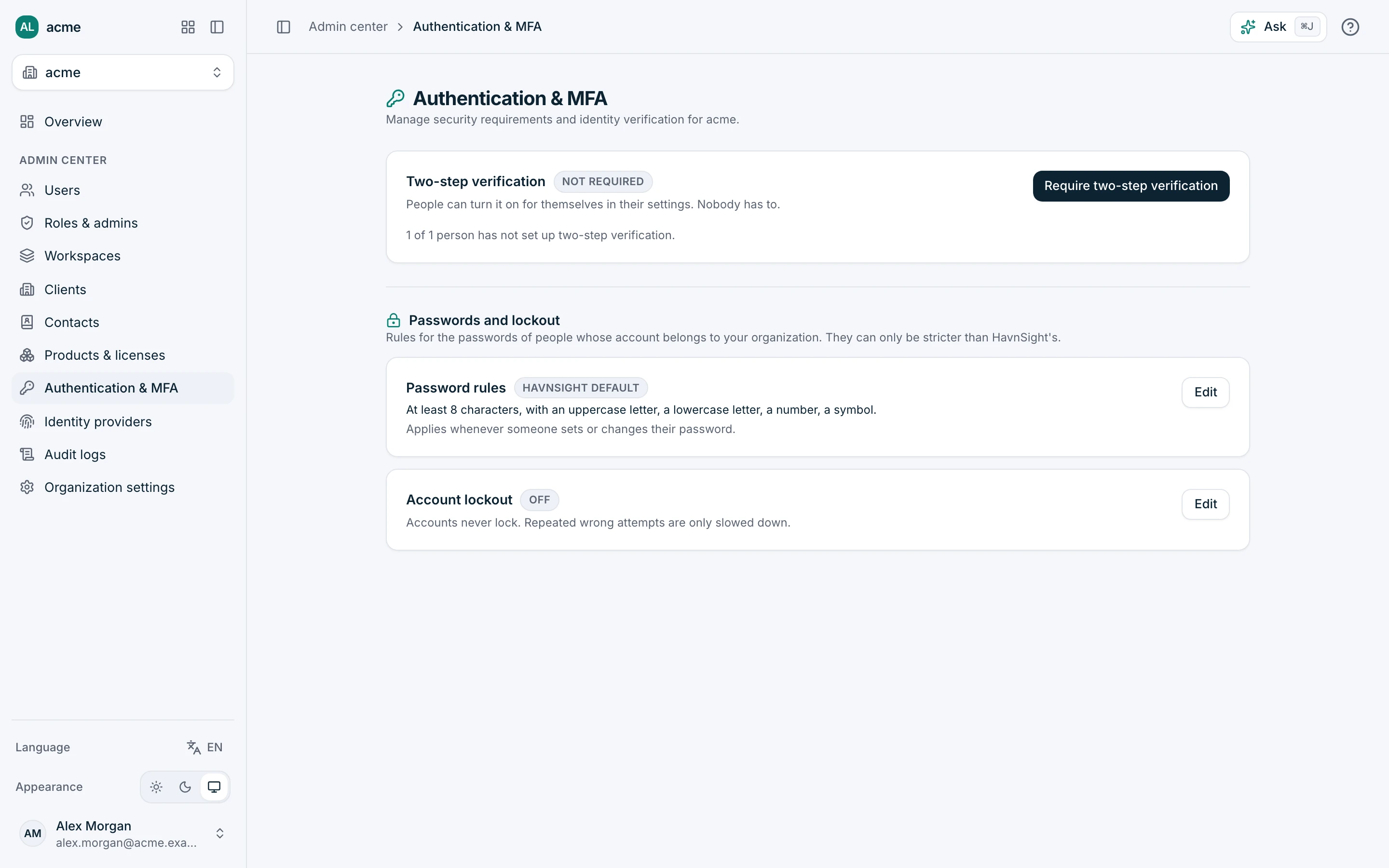
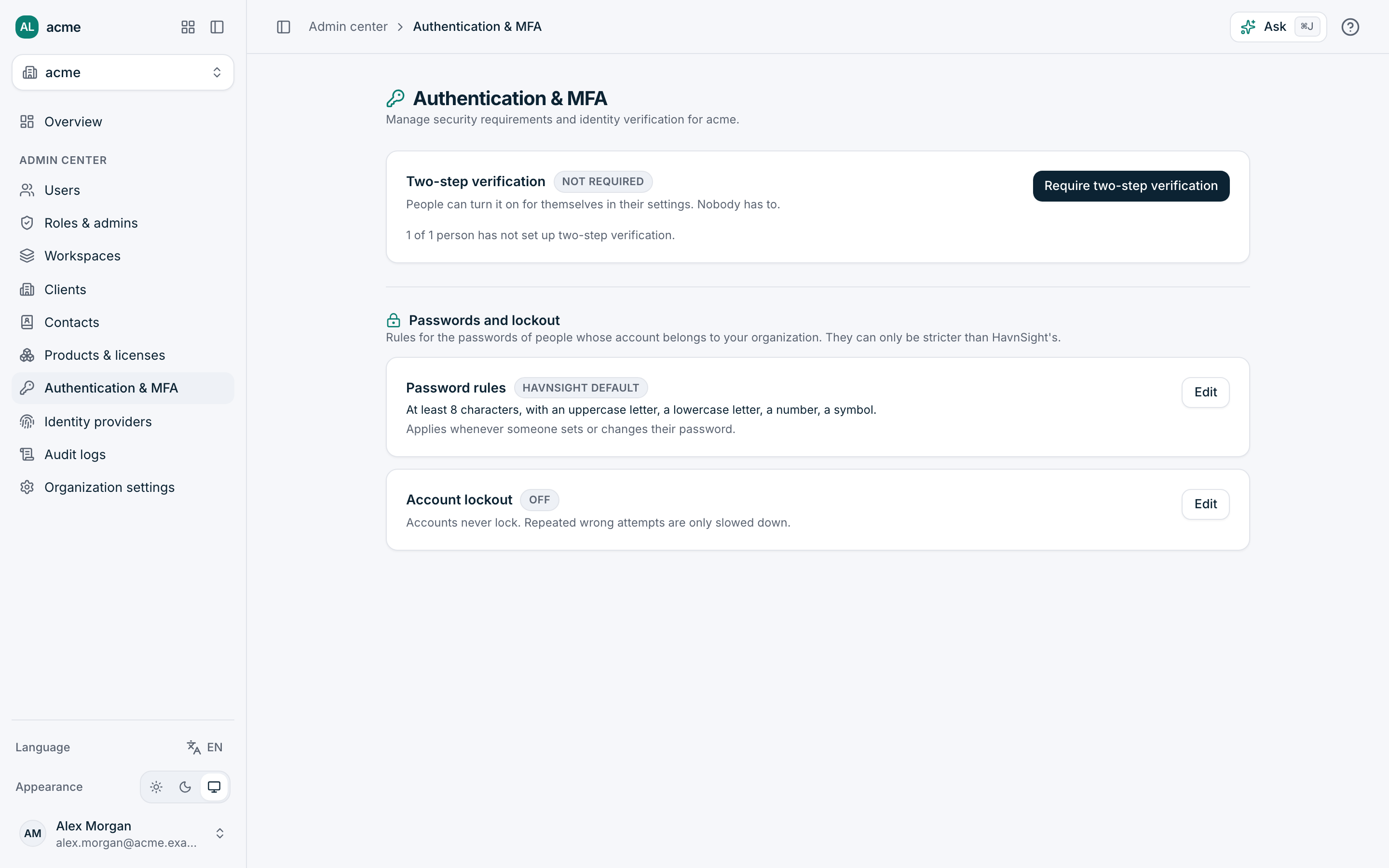
From then on, everyone whose account belongs to your organization enters a code from an authenticator app or their email after their password, at every sign-in. The page shows how many people haven't set it up yet; they're asked to at their next sign-in. People who are signed in now stay signed in until their next sign-in.
| Person | What happens at sign-in |
|---|---|
| Has a second step set up | Enters the code after their password |
| Hasn't set one up | Sets up an authenticator app or email codes before continuing |
| Signs in through your identity provider | Depends on your single sign-on setting: HavnSight asks for its own second step, or trusts the provider's |
Note
Your organization's rules apply to the people it owns, wherever they sign in. A guest follows the rules of the organization that owns their account.
Set password rules
- Select Admin center > Authentication & MFA.
- Under Passwords and lockout > Password rules, select Edit.
- Set the Minimum length and what a password Must contain.
- Select Save rules.
Your rules can only be stricter than HavnSight's. Existing passwords keep working; the new rules apply the next time someone sets a password.
Turn on account lockout
- Select Admin center > Authentication & MFA.
- Under Passwords and lockout > Account lockout, select Edit.
- Set how many wrong passwords and how many wrong verification codes in a row lock an account.
- Select Save lockout.
A locked person can't sign in until an administrator unlocks their account.
Caution
Anyone who knows a person's email address can lock their account by entering wrong passwords on purpose. Weigh this before you turn lockout on.
Related content
Was this page helpful?
Send feedback