

Add and manage users
Create users in your organization, invite guests from outside it, and help someone who can't sign in.
Create a user
A user belongs to your organization and signs in with a name on your domain, such as alex@your-domain.
-
Select Admin center > Users > New user > Create new user.
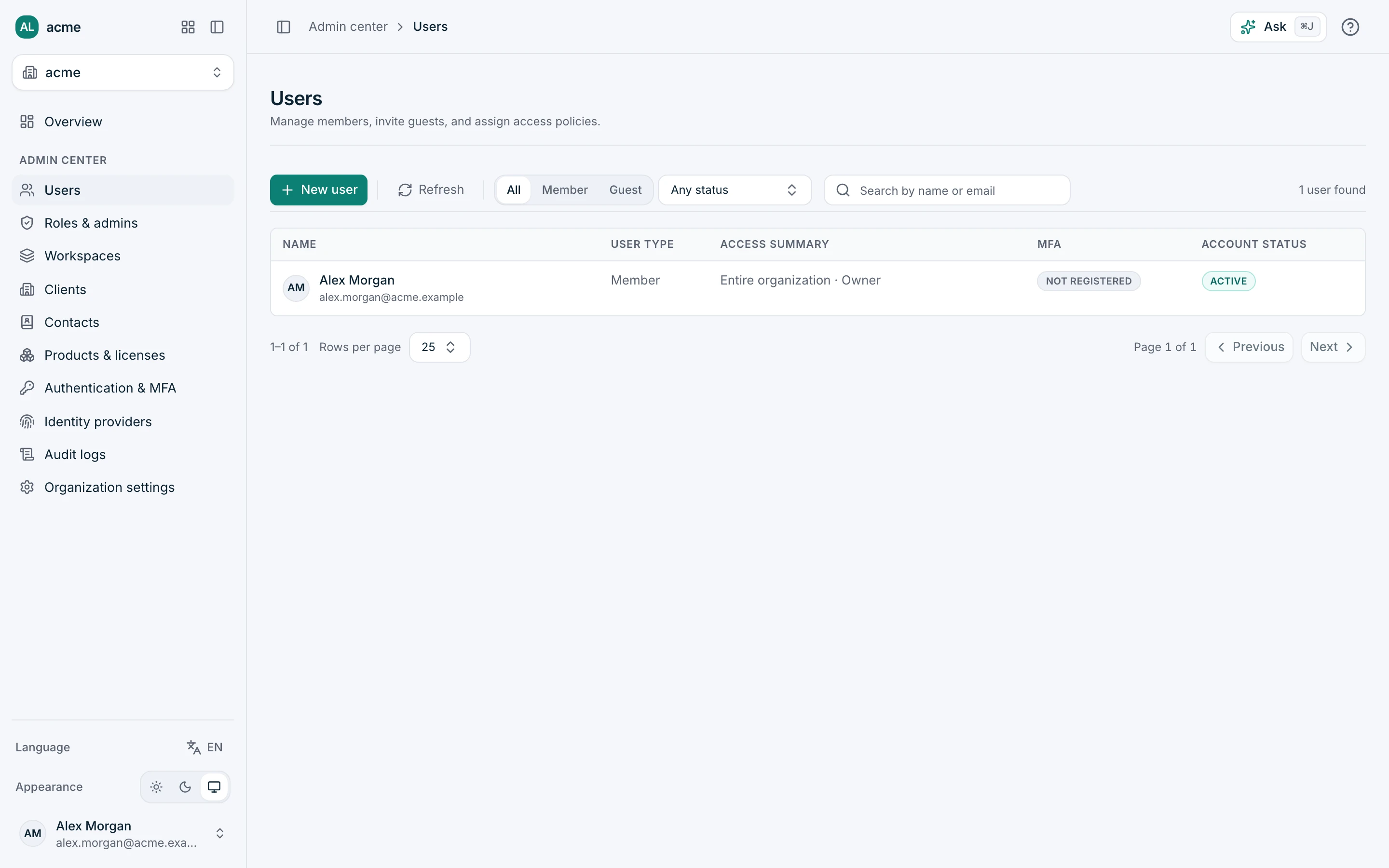
-
On Basics, enter a User name: letters and numbers, separated by single dots, hyphens or underscores. Enter the person's first and last name.
-
On Access policies, add one or more policies. To create the user without access, add none.
-
On Review + create, check the details and select Create.
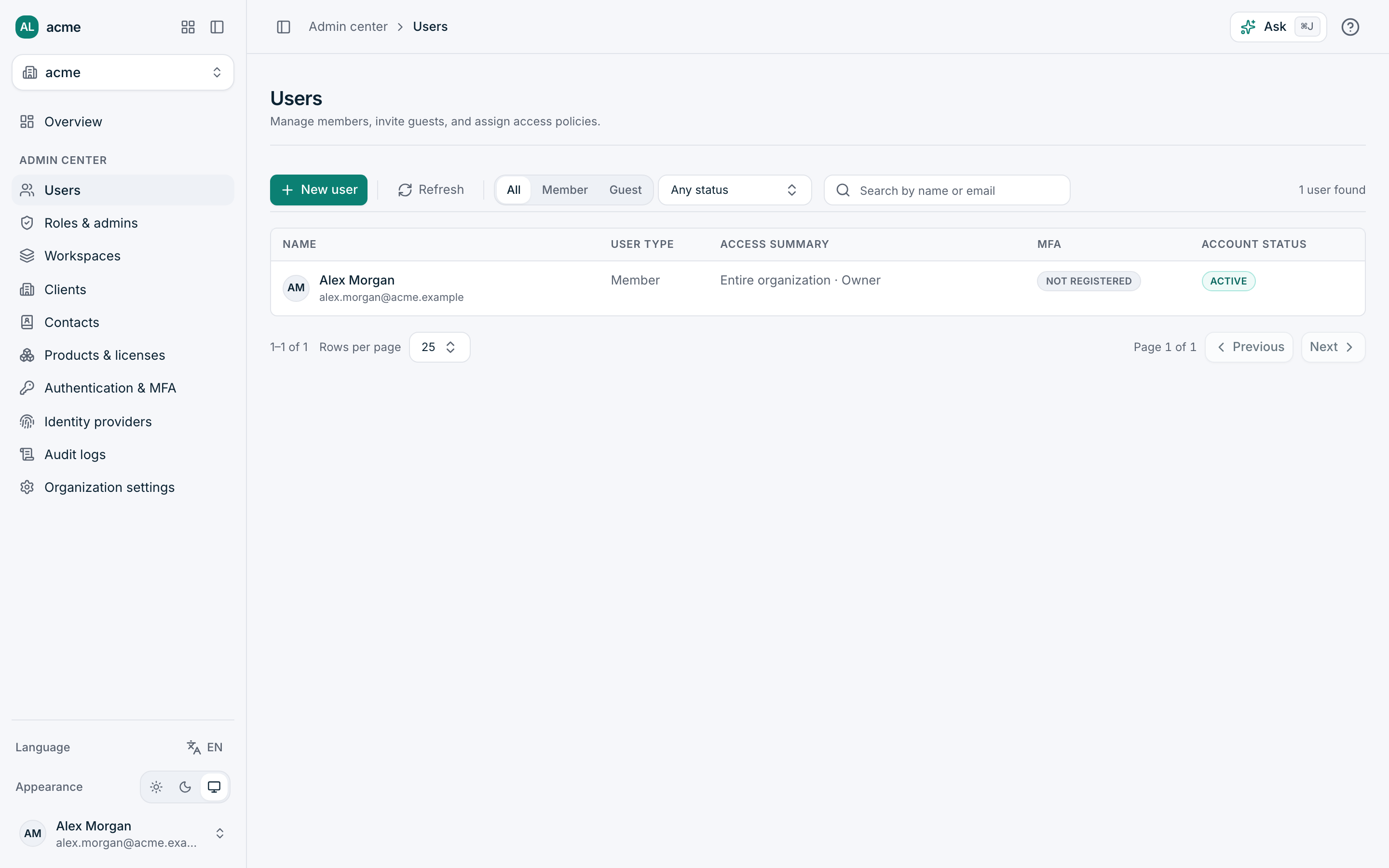
Note
A user can only be created on a domain of your organization. To add someone with an address elsewhere, invite them as a guest.
Invite a guest
A guest is someone outside your organization, such as a contractor, who signs in with their own email address.
- Select Admin center > Users > New user > Invite external user.
- Enter their Email address.
- Give them a role in selected workspaces or at selected clients.
- Check the details and select Invite.
A guest can't be given access to the entire organization.
If the invitation is refused
| Message | What it means |
|---|---|
| Already a member | The person is already in your organization. |
| Domain of your organization | Use Create new user instead. |
| Domain belongs to another organization | The person has no account yet and can't be invited. |
Reset two-step verification
Reset a person's two-step verification when they lose their authenticator app or can't receive codes. Their authenticator app and email codes are removed. If your organization requires two-step verification, they set it up again at their next sign-in.
- Select Admin center > Users.
- In the person's MFA column, select Reset and confirm.
Unlock an account
When account lockout is on, too many wrong attempts in a row lock an account.
- Select Admin center > Users. The person's Account status shows Locked.
- Select Unlock and confirm. They can sign in again at once.
A guest is unlocked by their own organization. You can't unlock your own account.
See how a person signs in
- Select Admin center > Users, then select the person.
- Select Authentication methods.
The page shows whether they sign in with a password, a passkey or your identity provider, and which second steps they have set up.
Related content
Was this page helpful?
Send feedback